
Rebasing
# Rebasing
The git rebase command has a reputation for being magical Git voodoo that beginners should stay away from, but it can actually make life much easier for a development team when used with care
A detailed explenation on how to use git rebase can be found here (opens new window)
# Concept
The first thing to understand about git rebase is that it solves the same problem as git merge. Both of these commands are designed to integrate changes from one branch into another branch—they just do it in very different ways.
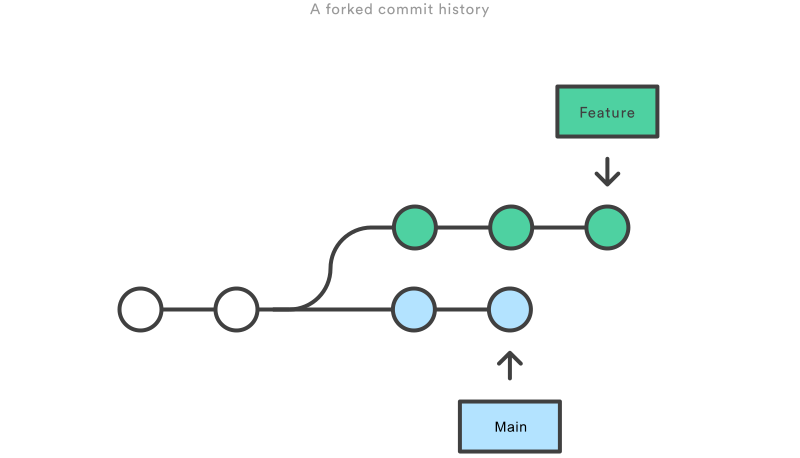
Consider what happens when you start working on a new feature in a dedicated branch, then another team member updates the main branch with new commits. This results in a forked history, which should be familiar to anyone who has used Git as a collaboration tool.
# Merge
The easiest option is to merge the main branch into the feature branch using something like the following:
git checkout feature
git merge main
This creates a new “merge commit” in the feature branch that ties together the histories of both branches, giving you a branch structure that looks like this:
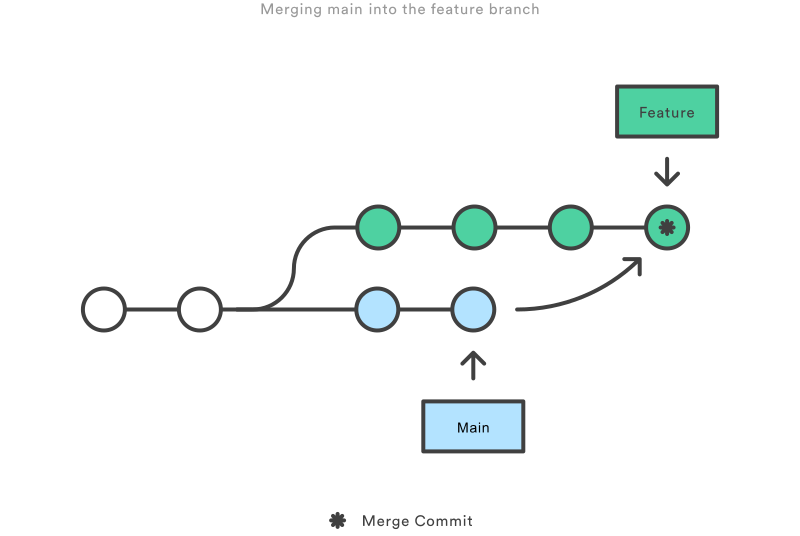
Merging master into the feature branch
Merging is nice because it’s a non-destructive operation. The existing branches are not changed in any way. This avoids all of the potential pitfalls of rebasing (discussed below). On the other hand, this also means that the feature branch will have an extraneous merge commit every time you need to incorporate upstream changes. If main is very active, this can pollute your feature branch’s history quite a bit. While it’s possible to mitigate this issue with advanced git log options, it can make it hard for other developers to understand the history of the project.
# Rebase
As an alternative to merging, you can rebase the feature branch onto main branch using the following commands:
git checkout feature
git rebase main
This moves the entire feature branch to begin on the tip of the main branch, effectively incorporating all of the new commits in main. But, instead of using a merge commit, rebasing re-writes the project history by creating brand new commits for each commit in the original branch.
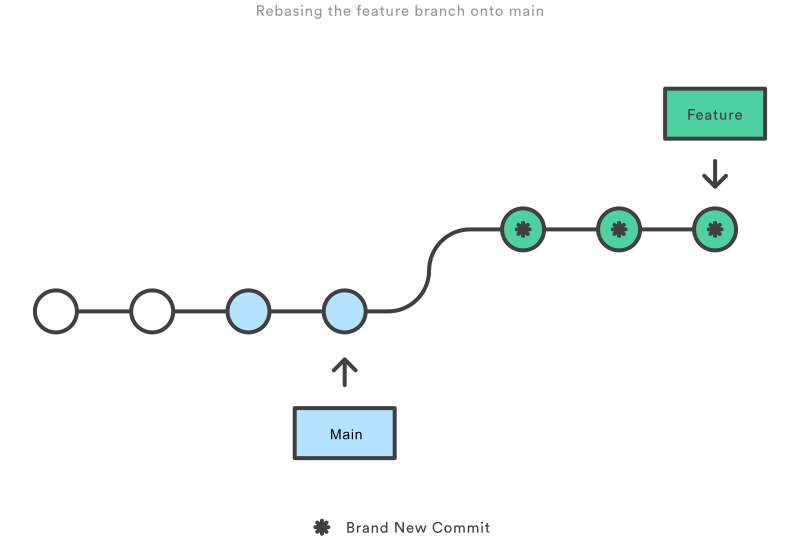
Rebasing the feature branch onto master The major benefit of rebasing is that you get a much cleaner project history. First, it eliminates the unnecessary merge commits required by git merge. Second, as you can see in the above diagram, rebasing also results in a perfectly linear project history—you can follow the tip of feature all the way to the beginning of the project without any forks. This makes it easier to navigate your project with commands like git log, git bisect, and gitk.
But, there are two trade-offs for this pristine commit history: safety and traceability. If you don’t follow the Golden Rule of Rebasing, re-writing project history can be potentially catastrophic for your collaboration workflow. And, less importantly, rebasing loses the context provided by a merge commit—you can’t see when upstream changes were incorporated into the feature.
# Interactive Rebasing
Interactive rebasing gives you the opportunity to alter commits as they are moved to the new branch. This is even more powerful than an automated rebase, since it offers complete control over the branch’s commit history. Typically, this is used to clean up a messy history before merging a feature branch into main.
To begin an interactive rebasing session, pass the i option to the git rebase command:
git checkout feature
git rebase -i main
This will open a text editor listing all of the commits that are about to be moved:
pick 33d5b7a Message for commit #1
pick 9480b3d Message for commit #2
pick 5c67e61 Message for commit #3

# Rebase 8db7e8b..fa20af3 onto 8db7e8b
#
# Commands:
#  p, pick = use commit
#  r, reword = use commit, but edit the commit message
#  e, edit = use commit, but stop for amending
#  s, squash = use commit, but meld into previous commit
#  f, fixup = like "squash", but discard this commit's log message
#  x, exec = run command (the rest of the line) using shell
#
# These lines can be re-ordered; they are executed from top to bottom.
#
# If you remove a line here THAT COMMIT WILL BE LOST.
#
# However, if you remove everything, the rebase will be aborted.
#
# Note that empty commits are commented out
This listing defines exactly what the branch will look like after the rebase is performed. By changing the pick command and/or re-ordering the entries, you can make the branch’s history look like whatever you want. For example, if the 2nd commit fixes a small problem in the 1st commit, you can condense them into a single commit with the fixup command:
pick 33d5b7a Message for commit #1
fixup 9480b3d Message for commit #2
pick 5c67e61 Message for commit #3
When you save and close the file, Git will perform the rebase according to your instructions, resulting in project history that looks like the following:
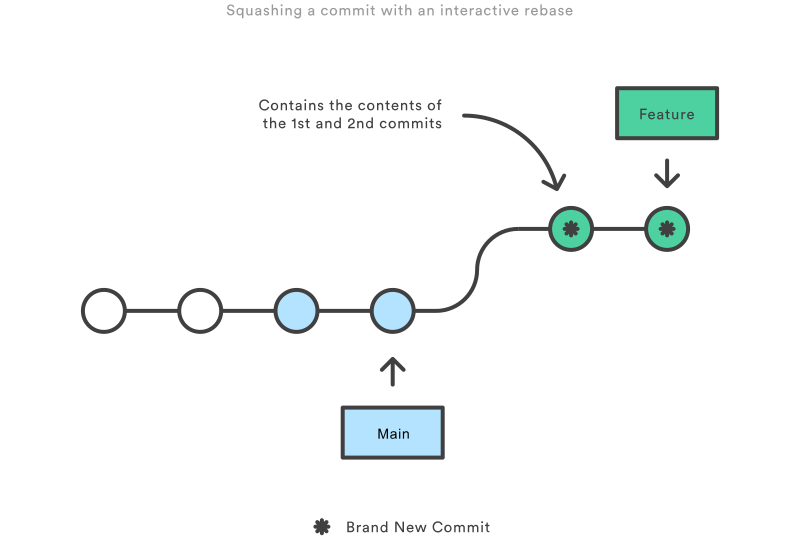
Squashing a commit with an interactive rebase Eliminating insignificant commits like this makes your feature’s history much easier to understand. This is something that git merge simply cannot do.
# When not to use!
Never rebase a publicly used branch!! So never rebase on master or staging/dev branches. You'll only rebase BG or Feature branches.